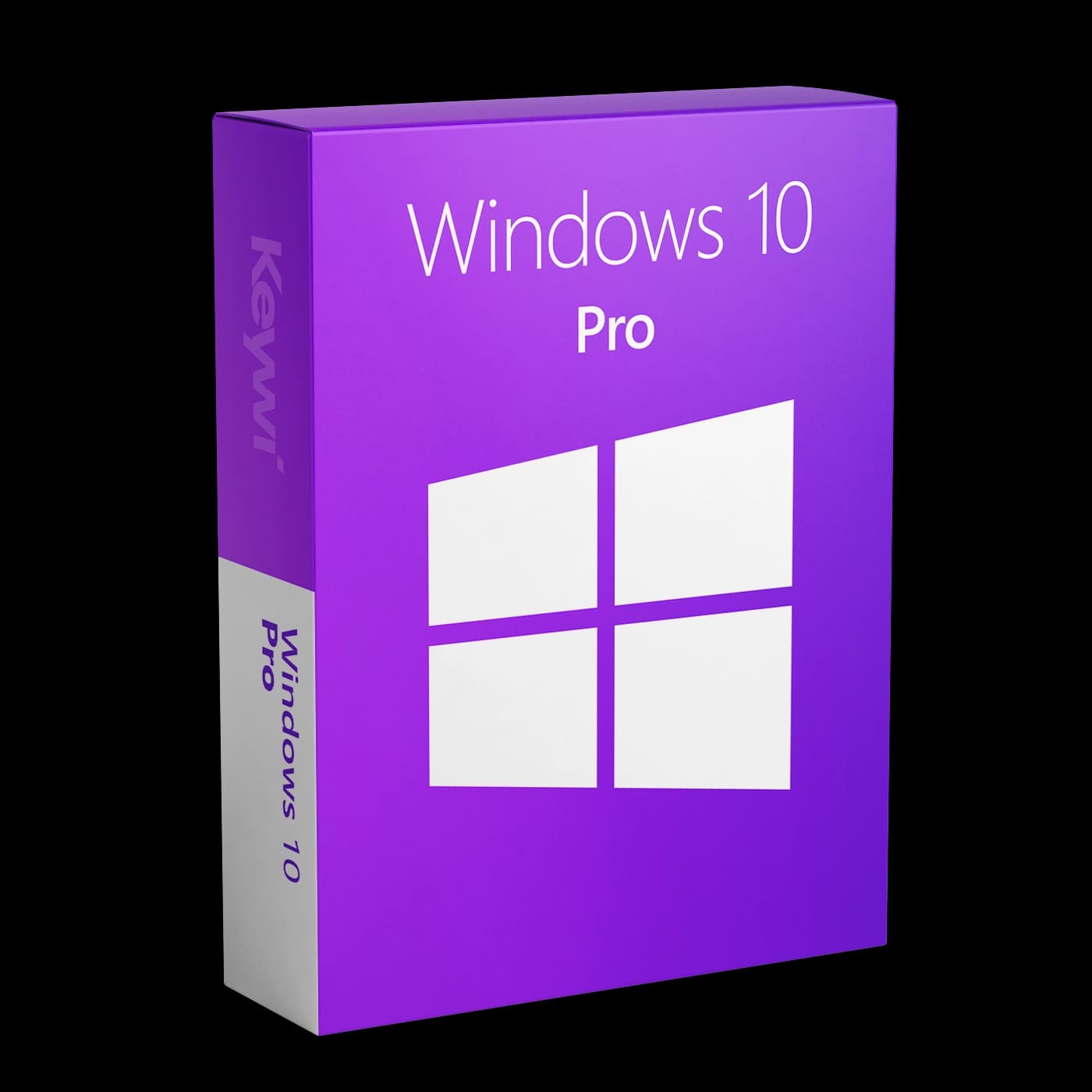




You have received your Windows 10 Pro licence key by email. This guide shows both ways to activate: quickly entering the key in an existing Windows 10 installation, and a complete clean installation using the Media Creation Tool. Depending on your PC, this takes between 5 and 45 minutes.
System requirements
Windows 10 Pro (64-bit) runs on almost any PC from the last ten years. Before installing, briefly check these minimum requirements:
- Processor: 1 GHz or faster
- Memory: 2 GB RAM (64-bit) or 1 GB RAM (32-bit)
- Hard drive: at least 20 GB of free disk space
- Graphics: DirectX 9 capable graphics card with WDDM driver
- Internet connection: required for download and activation
Preparation: what you need
- Your 25-character product key from the order email (check your spam folder if necessary)
- For a clean installation only: an empty USB stick with at least 8 GB
- A backup of your important files if you are reinstalling
Method 1: Activate an existing Windows 10 installation
If Windows 10 is already running on your PC, no reinstallation is needed. Simply enter the key in Settings:
- Open the Start menu and click the gear icon (Settings).
- Go to
Update & Security>Activation. - Click Change product key.
- Enter your 25-character product key in the blue window. The safest way is to copy and paste it directly from the email.
- Click Next. Windows connects to the Microsoft servers and activates automatically.
- Check: the same page now shows the message "Windows is activated with a digital licence".
Important: Your key activates only the Windows 10 Pro edition. You can see which edition is installed under
Settings > System > About.
Upgrading from Windows 10 Home to Pro
If Windows 10 Home is currently installed on the PC, enter the Pro key in the same place anyway: Windows recognises the key and automatically upgrades from Home to Pro. The PC restarts once or twice during this process, and your files and programs are retained.
Method 2: Clean installation with the Media Creation Tool
For a fresh system, use the official Media Creation Tool from Microsoft (in the "Software Download" section on microsoft.com). You will also find the link on our download page.
- Download the Media Creation Tool and run it.
- Select Create installation media for another PC and create the bootable USB stick (language: your preferred language, architecture: 64-bit).
- Boot the target PC from the USB stick. You can usually reach the boot menu when switching on by pressing
F12,F11orEsc(depending on the manufacturer). - Follow the Windows setup. When asked for the product key, enter your key, or click I don't have a product key and enter it after the installation as described in Method 1.
- If the setup asks for the edition, make sure you select Windows 10 Pro.
- Select the target hard drive, wait for the installation to complete and set up Windows.
- Finally, check under
Update & Security>Activationwhether Windows is activated.
Warning: A clean installation deletes all data on the selected hard drive. Back up your files to an external drive or to the cloud beforehand.
Common problems
- Typing errors: Watch out for mix-ups such as 'Q' and '0' or 'B' and '8'. It is best to copy the key directly from the email.
- Wrong edition: A Pro key will not activate a Home installation that is meant to stay Home. Check the edition under
Settings > System > About. On Home, entering the key starts the Pro upgrade (see above). - Error code such as 0xC004C003: Usually the activation servers are temporarily unreachable. Wait a few minutes, restart the PC and try again. Alternatively, use Troubleshoot directly on the Activation page.
- No internet connection: Without internet access, Windows cannot verify the key. Connect the PC via LAN or Wi-Fi and repeat the activation.
For advanced users: the key can also be entered via Command Prompt (as administrator) using slmgr /ipk YOUR-PRODUCT-KEY followed by slmgr /ato for online activation.
Detailed solutions for all error codes can be found in our activation help.
Questions? We are here to help
Stuck at any point? Our support team is happy to help you personally via live chat. Every order includes 90 days of free support. Have your order number ready and we can help you even faster.