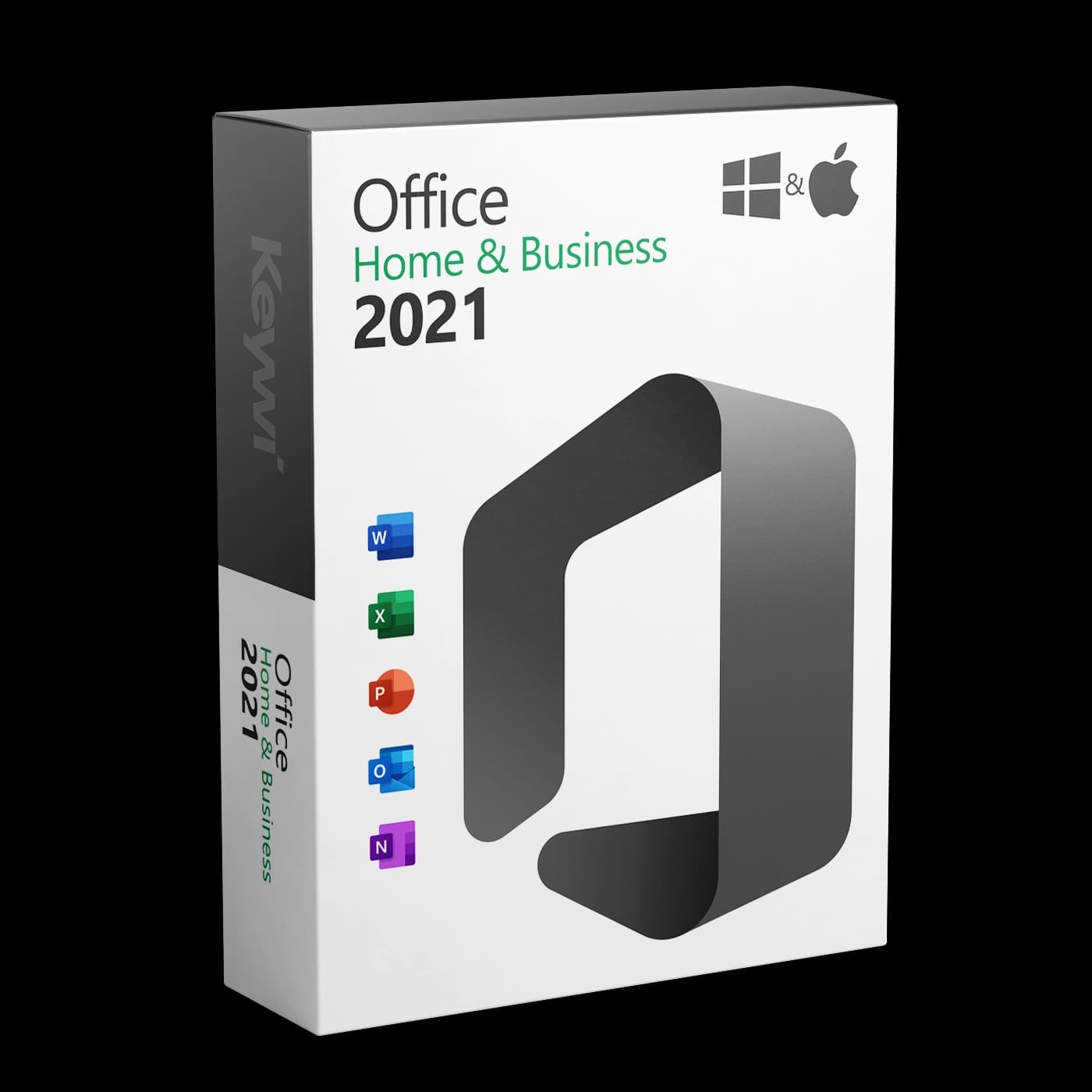




This guide shows you how to install and activate Office 2021 Home and Business on a Windows PC. You received your 25-character product key by email from Keywi24 after your purchase, so have it ready.
Important to know: Office 2021 Home and Business is redeemed through a Microsoft account. The key is permanently linked to your account, and download and activation then run through this account rather than through entering a key in the program.
System requirements
- Operating system: Windows 10 or Windows 11 with current updates
- Memory: at least 4 GB RAM
- Hard disk: at least 4 GB of free disk space
- Microsoft account: required for redeeming and activation
- Internet connection: required for download and activation
Note: A Microsoft account is free and takes only a few minutes to create. If you do not have one yet, you can create it while redeeming the key.
Step 1: Redeem your product key
Redemption takes place in your web browser, before Office is installed on the PC.
- Open the Microsoft redemption page
setup.office.comin any browser. - Sign in with your Microsoft account, or create a new account there.
- Enter the 25-character product key from your Keywi24 email. The safest way is to copy it directly from the email.
- Confirm your country and language.
- Click Next. The key is now assigned to your account.
Important: The key is permanently bound to the Microsoft account you use. Use an account you will have access to in the long term and keep the login details safe. If you reinstall later, you will not need the key again, only this account.
Step 2: Download and install Office
- After redeeming, you are taken straight to the download. Alternatively, you can find Office at any time in your Microsoft account at
account.microsoft.comunder "Services & subscriptions". - Next to Office Home & Business 2021, click Install.
- Run the downloaded file
OfficeSetup.exeand confirm the Windows security prompt. - The setup automatically downloads Word, Excel, PowerPoint and Outlook and installs them in the background. Leave the PC switched on in the meantime.
- Wait until the message appears that the installation is complete.
Tip: You can also find the installer on our download page. With Office 2021 Home and Business, activation always runs through your Microsoft account regardless, so make sure to redeem the key first (Step 1).
Step 3: Check activation
- After installation, open an Office app, for example Word.
- Sign in when prompted, using the same Microsoft account as in Step 1.
- Accept the licence agreement.
- Check the status under
File > Account: it should say "Product Activated – Microsoft Office Home & Business 2021".
Common problems
- Remove preinstalled Office: New PCs often come with a Microsoft 365 trial preinstalled. Uninstall it before installing via
Settings > Appsand restart the PC, otherwise licence conflicts can occur. - "Unlicensed Product" message: Check under
File > Accountthat you are signed in with the account used to redeem the key. If not, sign out and sign in again with the correct account. - Typing errors in the key: Watch out for mix-ups such as '0' and 'O' or 'B' and '8'. It is best to copy the key directly from the email.
- "Key has already been used" message: If you have already redeemed the key yourself, there is no need to enter it again. Simply reinstall Office from your Microsoft account and sign in. In all other cases, please contact our support.
Help with activation
If activation still does not work after these steps, our activation help offers solutions for the most common error messages.
Personal assistance: You can reach our team at any time via live chat. Support is free for 90 days after purchase. Have your order number ready for the fastest help.