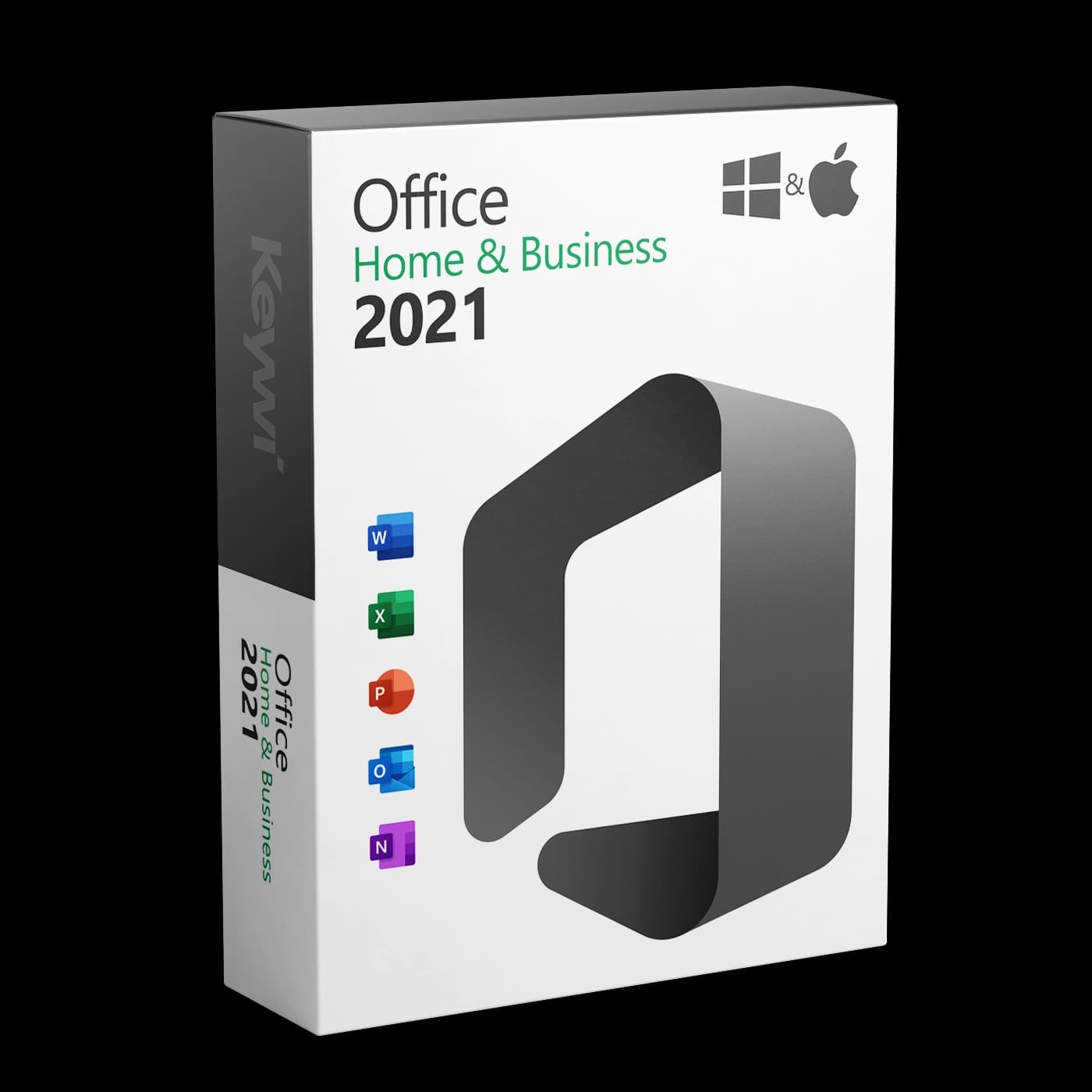




This guide takes you through installing and activating Office 2021 Home and Business on the Mac. You received your 25-character product key from Keywi24 by email after your purchase. This is a perpetual licence with no subscription, permanently linked to your Microsoft account. It includes Word, Excel, PowerPoint, Outlook and OneNote.
System requirements
- macOS: Office 2021 for Mac requires macOS 11 (Big Sur) or later; the three most recent macOS versions are supported. You can check the installed version in the Apple menu under
About This Mac. - Processor: Apple Silicon (M series) or Intel, both are supported.
- Memory and storage: At least 4 GB of memory and around 10 GB of free disk space.
- Other: A free Microsoft account and an internet connection for redemption and activation.
Note: If your Mac is running an older version of macOS, update the system before installing via
System Settings > General > Software Update, otherwise the installer will stop.
1. Redeem the product key with your Microsoft account
Office 2021 Home and Business is not activated directly in the app using the key. The key is first redeemed in your browser and permanently linked to your Microsoft account in the process.
- In your browser, open the Microsoft redemption page setup.office.com.
- Sign in with your Microsoft account. If you do not have one yet, create one there free of charge.
- Enter the 25-character product key from your Keywi24 email. Copying and pasting is the safest way, as it avoids typing errors.
- Confirm your country and language and click Next.
- The key is now assigned to your account. Microsoft takes you straight to the download.
Important: Make a note of which Microsoft account you used to redeem the key. For future reinstallations you no longer need a key, only this account.
2. Download and install Office
The download starts straight after redemption. You can also find the installer at any time at account.microsoft.com under "Services & subscriptions" and on our download page.
- Download the installation file for Mac. It is a
.pkgfile of several gigabytes, so depending on your connection this takes a few minutes. - Double-click the
.pkgfile and follow the installation wizard. - Confirm the installation with your Mac user password.
- Once complete, you will find Word, Excel, PowerPoint, Outlook and OneNote in the folder
Applications.
Important: Do not install Office from the Mac App Store. The App Store versions can only be unlocked with a Microsoft 365 subscription, not with an Office 2021 product key. It is best to delete any App Store versions of Word, Excel and so on that are already installed before you install.
3. Activate Office 2021 on the Mac
- Open any Office app, for example Word (from the folder
Applicationsor from Launchpad). - In the start window, click Sign in.
- Sign in with the same Microsoft account you used to redeem the key.
- Office verifies the licence in the background and then displays a confirmation showing your licence "Office Home & Business 2021".
- Activation is now complete and applies automatically to all Office apps on this Mac.
Common problems
- Key is not accepted: Check for typing errors (mix-ups such as 'Q' and '0' or 'B' and '8') and redeem the key at setup.office.com, not in the app.
- "Unlicensed Product" message: You are signed in to the app with the wrong Microsoft account. Sign out and sign in with the account used to redeem the key.
- Activation fails despite the correct account: Completely remove old versions of Office or a pre-installed Microsoft 365 trial (delete the apps from the folder
Applicationsand restart the Mac), then sign in again. - Installer does not start: The macOS version is usually too old. Update macOS and then start the installation again.
You will find detailed solutions with pictures in our activation help.
Help from Keywi24 support
If you get stuck at any point, our support team can help you via live chat, free of charge for 90 days from the date of purchase. Have your order number and the email address of your Microsoft account ready for the fastest help.